Performing a back-up of your Opencart eShop
Few CMS or shopping cart sytems are a more simple and easy to back-up than Opencart. In fact this is one of the reasons that we at Arena DM recommend Opencart.
By ensuring that you have a recent back-up of your shop’s database you’ll be able to get your business up and running again quickly and with minimal fuss should the worst even happen and you experience a complete system failure. Here we offer a clear, step by step set of instructions so you can learn how to back-up your Opencart eShop.
STEP 1 – Login to you Opencart Admin Panel
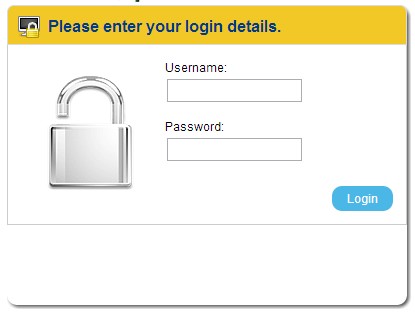
By default, the admin panel is located in a sub-directory of your Opencart shop’s root “admin” and so you’ll need to type in the address http://www.YOURSTORE.com/admin/ This will bring up the admin login screen. Enter your username and password and click “LOGIN“
STEP 2 – Navigate to the back-up window
From the main navigation hover over the SYSTEM option and then select “BACK UP/RESTORE” from the pop up menu. The back-up window will now load.
NOTE: dont worry if your Opencart admin panel looks a little different to the one shown here I’ve taken the trouble to style my Admin area so the colour scheme is a little easier on the eye.
STEP 3 – Selecting what you wish to back up
In Opencart you don’t need to back up everything every time you back up. You have the option to back-up just the selected information that you need. For most people a full back up is a good idea, in fact the only good reason I can think of for not making a full backup of Opencart is if the server you are on is running slow or that your host provider limits SQL resources in some way. In either case this doesn’t apply for my clients and so we’re going to perform a full back-up of Opencart.
To do this click the SELECT ALL link just below the widow full of check boxes. By clicking this link it will select every possible field available to include in your back-up.
Lastly, simply click the BACKUP button located towards the top right of the screen. After a few moments you browser will begin to download an SQL file wich contains all of you product data as well a customer histories and all other information contained in your Opencart shop’s database.
Well done, your Opencart site has now backed-up. Keep the back-up file safe and remember to repeat this process regularly to ensure a minimal loss of data if you ever run into problems.
If you found this post helpful, please take a moment and like our Page on Facebook or subscribe to our channel on Youtube for more great Opencart tutorials and tips. Post your question in the comments feed and we’ll do our best to answer it for you. If we think there’s a need we may even create a post or tutorial based on your questions.
Thanks for reading.
You must be logged in to post a comment.